Google Drive
存取 Google Drive 中特定資料夾或檔案,需要 2.1.20230130 以上版本
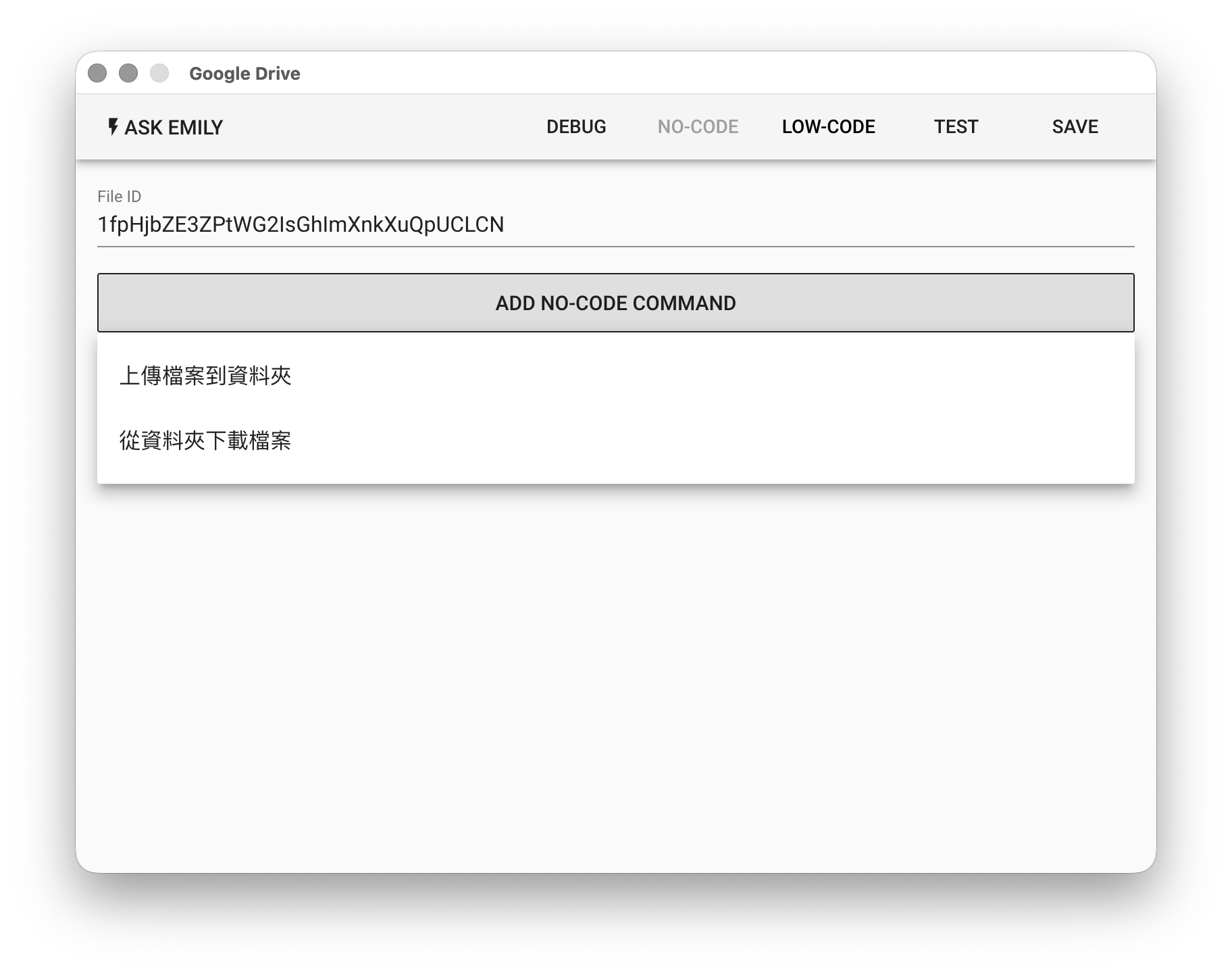
參數
File ID - 指定 Google Drive 資料夾或檔案的 ID,支援 %FILENAME% 變數,從瀏覽器網址列中可以取得,例如:
https://drive.google.com/drive/folders/[FileID] // 資料夾
https://docs.google.com/document/d/[FileID]     // 文件
https://docs.google.com/spreadsheets/d/[FileID] // 試算表
https://drive.google.com/file/d/[FileId]        // 檔案
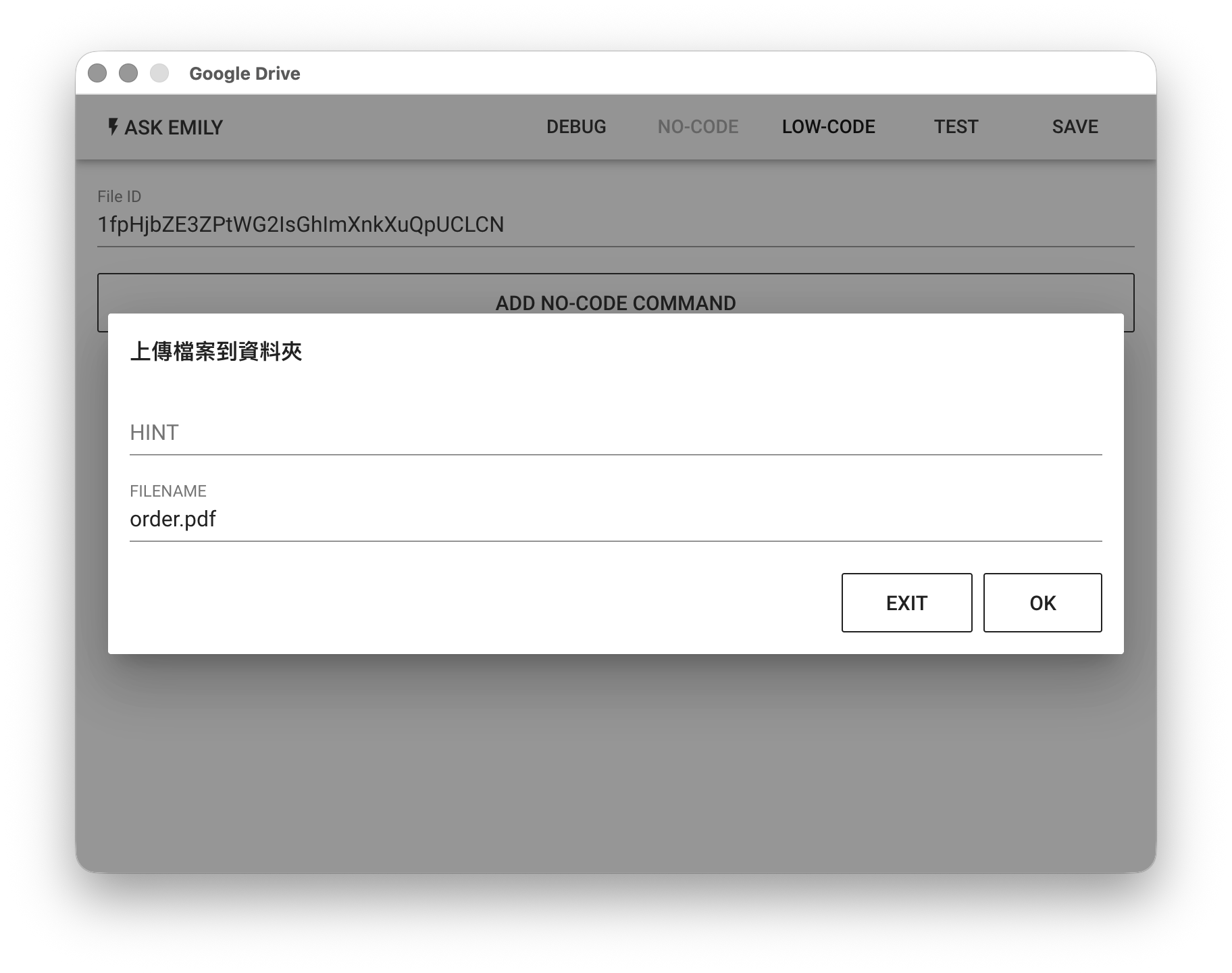
No-Code 編輯器
提供:「上傳檔案到資料夾」、「從資料夾下載檔案」等無程式碼指令。例如,將工作資料夾中的 order.pdf 檔案上傳到 Google Drive 指定資料夾。
Low-Code 編輯器
input 物件
為指定 File ID 的 Google Drive 物件。若為資料夾物件,支援 list(), upload(filename), createFolder(foldername), createSpreadsheet(filename) 等非同步函式;若為檔案物件,則支援 download(filename), moveto(folderID) 等非同步函式:
// 指定的 File ID 為資料夾時,列出此資料夾中的所有物件,並下載所有檔案
let items = await input.list()
console.log(items)

// 當物件支援download(filename)函式時,將資料夾的檔案物件下載
for (const item of items) {
  if (item.download) await item.download()
}

// 指定的 File ID 為資料夾時,上傳一個工作資料夾中的檔案
let file = await input.upload('image.jpg')
console.log(file)

// 指定的 File ID 為資料夾時,建立一個名為 'subfolder' 子資料夾
let folder = await input.createFolder('subfolder')
console.log(folder)

// 指定的 File ID 為資料夾時,建立一個 Google Spreadsheet 檔案
let file2 = await input.createSpreadsheet('mysheet')
console.log(file2)

// 指定的 File ID 為檔案時,下載此檔案到工作資料夾
await input.download()

// 將檔案移動到指定的資料夾
await input.moveto('fileIDxxx')