PowerShell
執行 PowerShell 腳本。需注意若用來控制微軟 Office 應用軟體,應先確保該軟體在本機有被安裝並可使用。
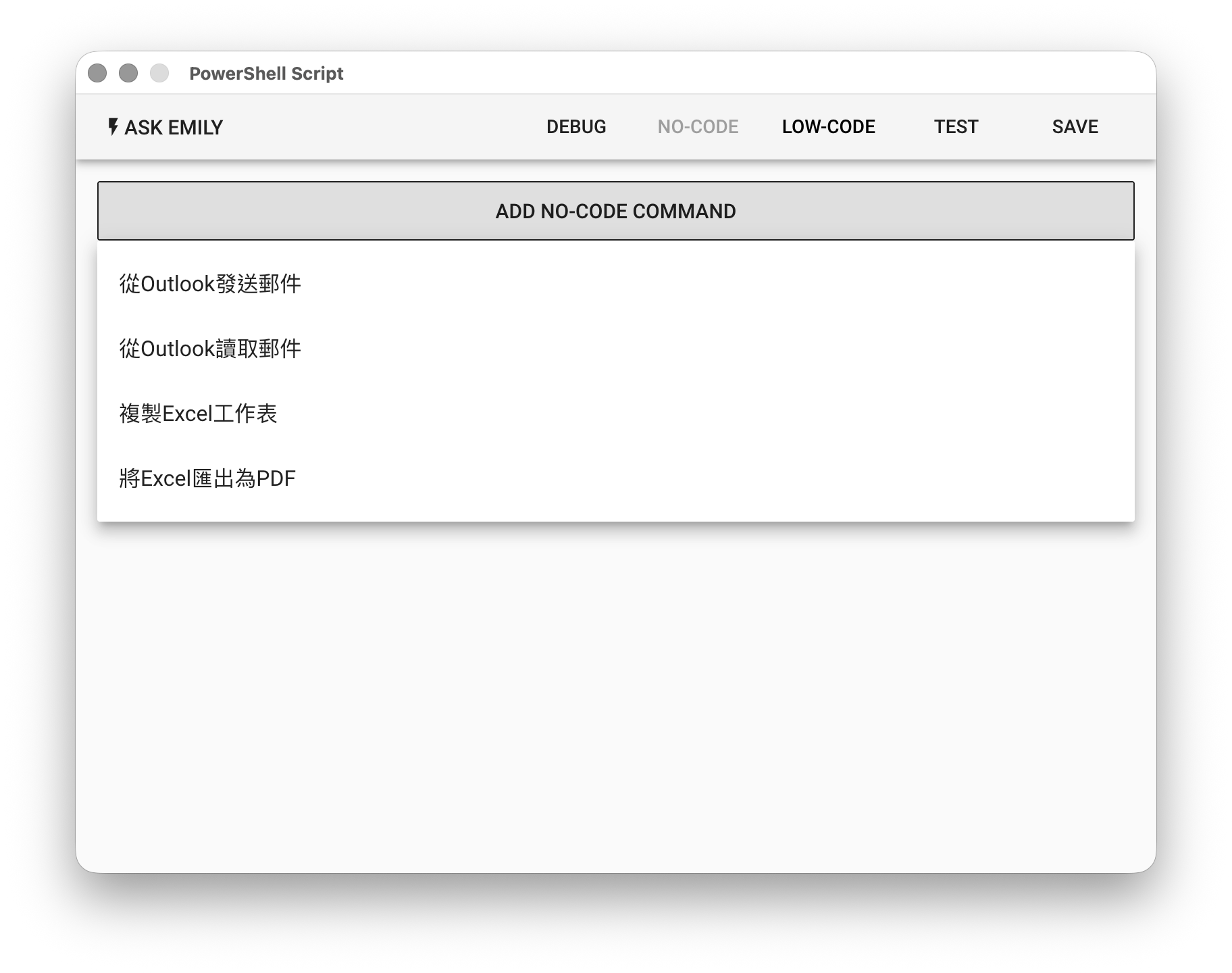
No-Code 編輯器
提供:「從Outlook發送郵件」、「從Outlook讀取郵件」、「複製Excel工作表」、「將Excel匯出爲PDF」等無程式碼指令。
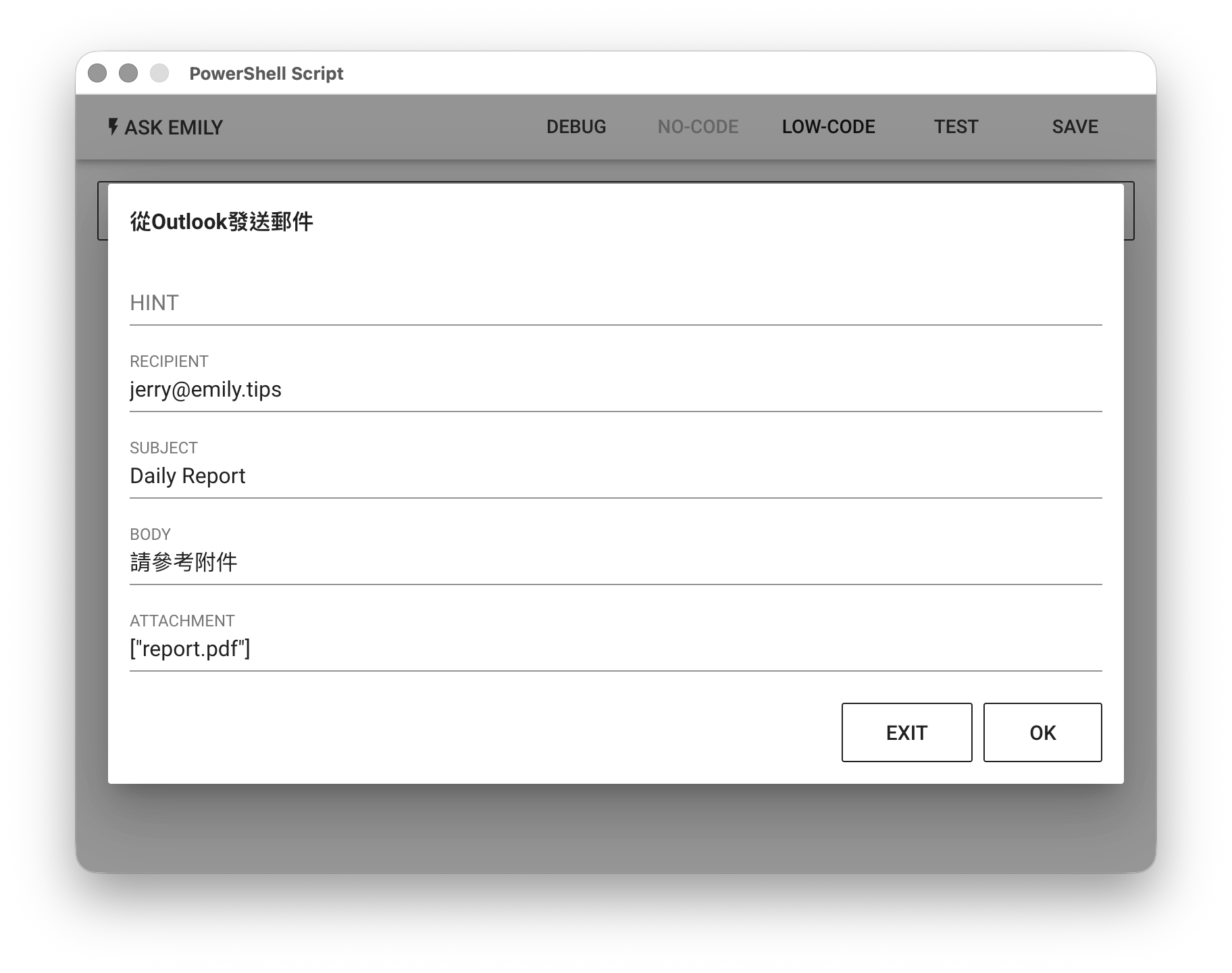
例如,從本機的 Outlook 應用程式發送郵件到執行信箱 jerry@emily.tips,郵件主旨為 Daily Report,內文為 請參考附件,附件為工作資料夾中的 report.pdf 檔案。
Low-Code 編輯器
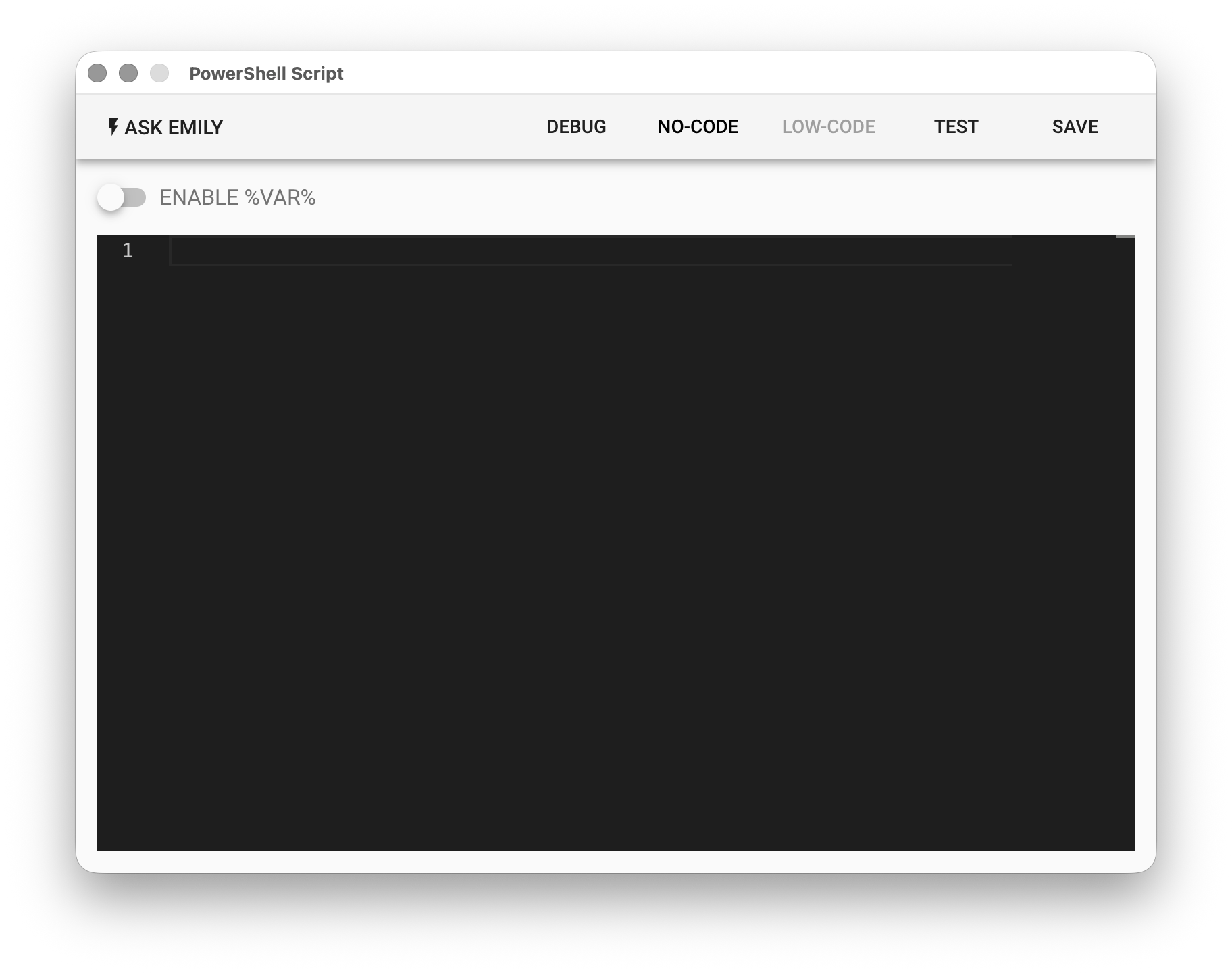
在 Low-Code 編輯器中撰寫 PowerShell 腳本並執行,其執行產生的標準文字輸出會寫入工作資料夾 output.txt 檔案中。關於 PowerShell 腳本用法請參考連結。
# 範例:取得所有可用命令清單:
Get-Command

# 範例:取得所有作業系統上的程序列表
Get-Process
ENABLE %VAR%
版本 2.2.20230225 以上,在 PowerShell 腳本中支援文檔變數 %FILENAME% 樣板。開啟後可在 PowerShell script 中以工作資料夾中 FILENAME.txt 的內容置換 script 中的 %FILENAME% 字串。
# 將工作資料夾中 content.txt 的內容取代 %content% 後再交由 PowerShell 執行
Write-Output "%content%"
注意事項
在開啟 %VAR% 功能下,應避免在腳本註解(# 開頭)中出現百分比符號%。Low-Code 編輯器只支援命令(Cmdlet)序列執行,即從上至下按照順序逐行命令執行。如果需要進一步達成流程控制例如 for, foreach, if, switch, while, until 等指令,需要將腳本存成 ps1 檔案,再於 Low-Code 中呼叫:
# myscript.ps1 印出 1~100
for ($i = 1; $i -le 100; $i++) {
    Write-Output $i
}
# PowerShell Low-Code, 呼叫上方的 ps1 腳本檔案
./myscript.ps1
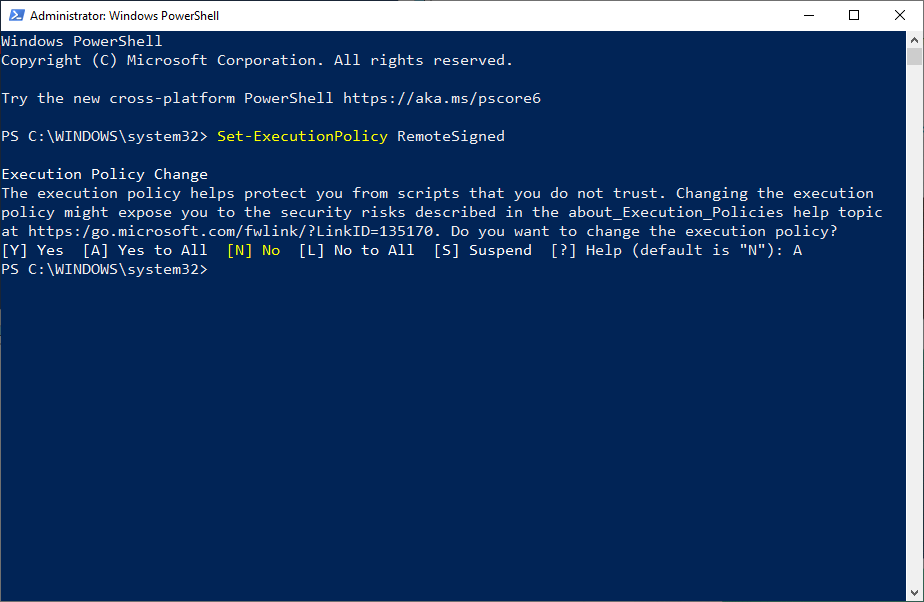
Windows PowerShell 預設限制呼叫 ps1 檔案,此時可在 Windows 上利用管理員身分(Run as Administrator)啟動 Windows PowerShell 終端機模式,以 Set-ExecutionPolicy 命令更新設定為 RemoteSigned 即可:
PowerShell Low-Code 可以用來自動化 MS Office 的各種應用軟體,例如執行某個 Excel 檔案中的 VBA 巨集:
# 定義 Excel 檔案的路徑
$filePath = "./excel.xlsm"

# 建立 Excel 物件
$excel = New-Object -ComObject Excel.Application

# 開啟 Excel 檔案
$workbook = $excel.Workbooks.Open($filePath)

# 呼叫 VBA Macro "VBA_Macro_Name"
$excel.Run("VBA_Macro_Name")

# 關閉 Excel 檔案並釋放記憶體
$workbook.Close()
$excel.Quit()
[System.Runtime.Interopservices.Marshal]::ReleaseComObject($excel) | Out-Null